



Building a Power Automate flow has always required a certain level of technical knowledge. You needed to know your trigger from your action, find the right connector, and configure each step manually. For people without that background, the barrier to entry was real.
Copilot changes that.
It’s now embedded directly into Power Automate as part of the build experience itself. You describe what you want in plain English. Copilot builds a draft. You refine it.
In the organisations we work with, this has done something more significant than cut build time. It’s widened the pool of people who can contribute to automation in the first place.
This blog covers what Copilot in Power Automate actually does across the different areas of the product, where it genuinely helps, and what to keep in mind before relying on it.
Microsoft Power Automate Copilot: At a Glance
Copilot isn’t a single feature. It runs across four distinct areas of Power Automate, and each one serves a different purpose and a different user group. That’s worth understanding before diving in. What Copilot does for someone building a cloud flow is quite different from what it does for an IT team monitoring automation performance at scale.
| Area | What Copilot Does | Best For |
|---|---|---|
| Cloud flows | Build and edit flows using natural language | Everyone – from first-time users to experienced makers |
| Desktop flows | Generate RPA steps and summarise existing flows | Teams automating Windows desktop applications |
| Process Mining | Ask questions about process data in plain English | Business analysts and operations leads |
| Automation Centre | Monitor flow performance through natural language queries | IT teams, CoE managers, and Power Platform admins |
Cloud Flows: From Prompt to Working Draft
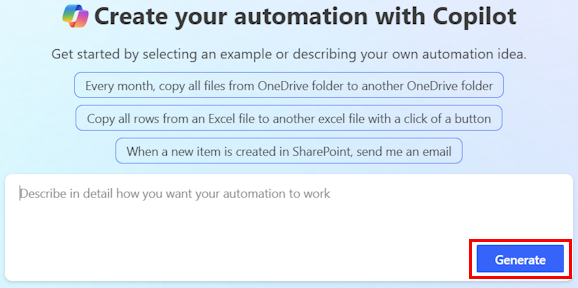
The most visible change to Power Automate is the prompt field on the home page. Describe what you want the automation to do. Copilot generates a draft flow with trigger, actions, and connections included – and opens it in the designer.
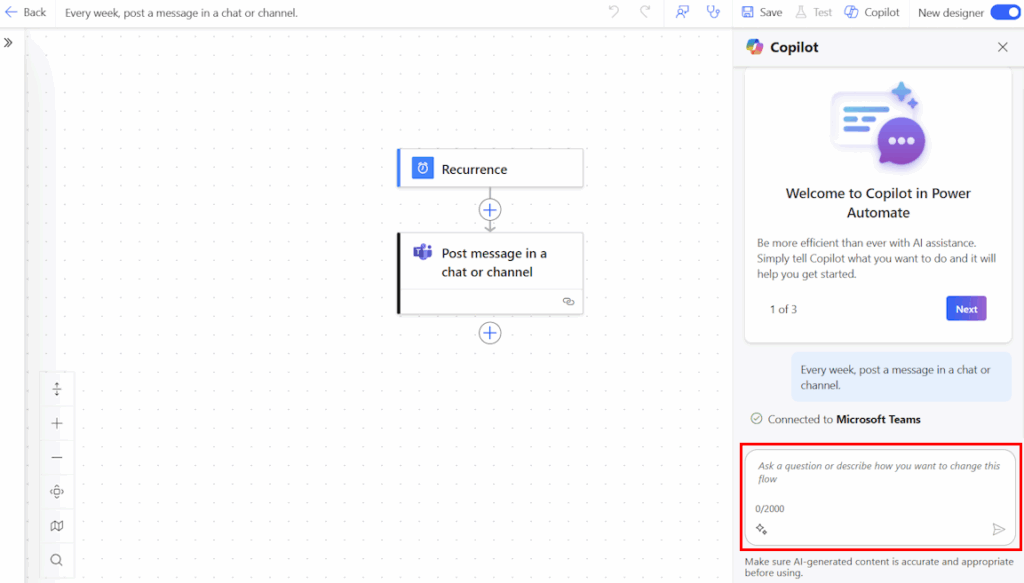
From there, the Copilot pane on the right stays with you through the build. You can ask it to change actions, swap steps, or explain what part of the flow is doing. It answers questions about the flow itself and about the product more broadly.
The quality of what it produces depends on how specific the prompt is. Microsoft recommends a “When X happens, do Y” structure, and naming the connectors you want to use makes a difference.
❌ “I want to process an email”
✅ “When an email arrives in Outlook, post the subject line to the General channel in Teams”
The more detail in the prompt, the less manual fixing afterwards.
What Copilot still won’t do for you
Copilot generates structure. It doesn’t validate business logic.
It won’t catch edge cases you haven’t described. It may select a suboptimal trigger, or miss a condition that only surfaces in production. Even a well-prompted flow will typically still need:
- Connection authentication checked and confirmed
- Conditions reviewed for completeness
- Error handling added manually
- Naming conventions applied before sharing with a team
Note: Copilot in cloud flows is only available in the new designer, not the classic version.
Troubleshooting Flows With Copilot
When a cloud flow fails (during testing or in run history) Copilot can analyse the error, explain what went wrong in plain English, and suggest a fix. That replaces a lot of time spent cross-referencing error codes and documentation.
You can also ask “What does this flow do?” at any point and get a clear summary. For teams inheriting flows built by someone else, that’s a useful starting point before making any changes.
Desktop Flows: AI Assistance for Low-Code Automation With AI and RPA
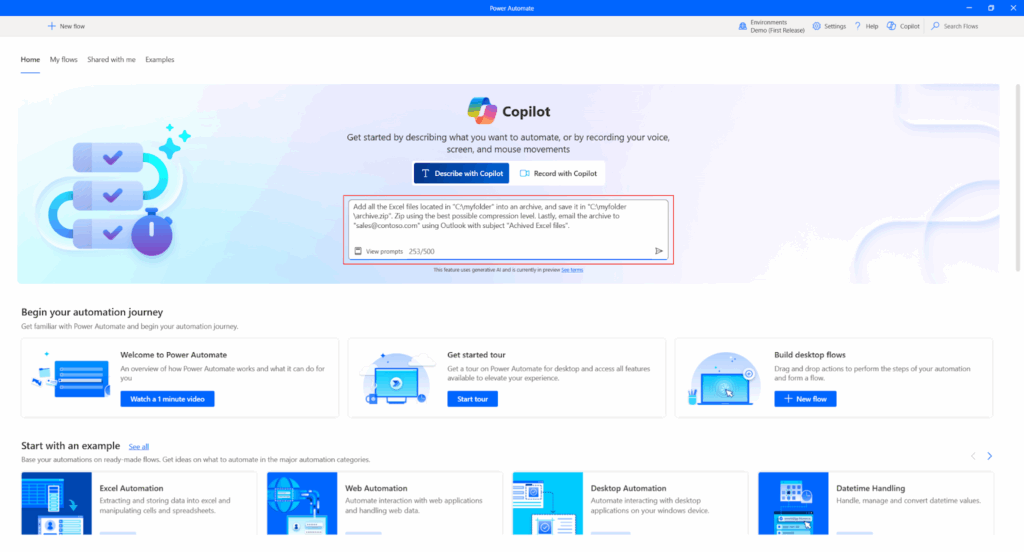
Desktop flows (Power Automate’s robotic process automation capability for Windows applications) have their own Copilot experience. It works through a side panel with a skill picker, and covers four modes:
- Flow creation – generate a new desktop flow from a natural language description
- Add a step – insert actions into an existing flow mid-build
- Generative answers – ask product questions backed by Microsoft documentation
- Summarise actions and subflows – get a plain-language explanation of what a section of a flow does
Copilot-generated actions are grouped by function and marked clearly in the designer, so it’s easy to see what was AI-generated and what was built manually.
Prompts need to be specific
If a mandatory parameter (e.g. a file path, an email address, a connection string) isn’t included in the prompt, Copilot leaves it blank and marks the action as erroneous.
Vague prompts produce flows that need significant manual correction.
❌ “Open an Excel file and read the data”
✅ “Open the Excel file at C:\reports\sales.xlsx and read all the data”
Desktop flow Copilot supports a specific subset of actions – Excel, Email, Outlook, PDF, files and folders, HTTP, scripting, and variables among them. Actions outside that set still need to be configured manually.
If a prompt includes browser or UI automation tasks, Copilot inserts a recorder placeholder rather than building that section. It flags that the step needs to be completed using the recorder before the flow will run.
RPA fragility doesn’t disappear
Desktop RPA flows are inherently sensitive to UI changes. Copilot speeds up the build, but it doesn’t eliminate that fragility. UI selectors still need validation, recorder outputs still need testing, and flows still need to be verified across the machines they’ll run on.
Regional availability
Cloud flows Copilot is available and on by default in the UK. Desktop flow creation via Copilot is currently a US-only preview. Generative answers and the summarise capability are available in the UK. If you’re not seeing Copilot in your desktop flows environment, your Power Platform administrator can check the settings.
Process Mining: Natural Language Queries on Your Process Data
Process Mining helps organisations see how their processes really work, not just how they should work. Copilot sits inside two parts of that experience.
During the ingestion phase, it helps you load data into Process Mining correctly. Once the data is in, Copilot in the analytics view lets you ask questions in natural language. It provides summaries, both quantitative and qualitative, without needing custom reports first.
In practice, this means an operations lead can ask “where are the longest delays in our invoice approval process?” and get a structured answer without waiting for a custom Power BI build or raising a request with the data team. It’s not a replacement for deeper analytics, but it gives teams the ability to spot patterns and act on them without the usual overhead.
Automation Centre: Monitoring Through Natural Language
The Automation Centre targets IT teams, CoE managers, and Power Platform admins. It provides visibility across the entire automation estate, not just single flows.
Copilot turns natural language questions into queries about your automation data. It shows results as tables, bar charts, or line charts.
Questions like:
- “How many runs failed last month?”
- “Who were the top users running flows last week?”
- “What’s the average handling time per machine?”
For a CoE team managing a growing automation estate, this changes how operational reviews work. Rather than pulling reports manually before a governance meeting, a team can query performance in real time and surface the flows that need attention (e.g. failed runs, high-volume outliers, unused automations) without configuration work beforehand.
It’s not a full replacement for structured Power Platform reporting or Power BI dashboards. For deeper analysis or compliance-driven reporting, those still have a place. But for day-to-day oversight, it removes a lot of the friction.
Power Platform Governance and Citizen Development
Automation used to require technical knowledge just to start. That barrier is lower now. People in operations, finance, HR (teams who understand their own processes better than anyone) can identify a problem and build a solution without waiting for IT capacity.
In the organisations we work with, teams that get the most from Copilot are those with good governance. They know which processes to automate, have a clear method for reviewing what is built, and handle AI-generated flows just like manual ones.
Without that structure, the picture looks different.
When everyone can build without clear guidelines, organisations face flow sprawl. This means they end up with many automations that no one really manages. These automations often break when someone leaves or duplicate existing work. Policies can be ignored, and connectors may be misused. What began as empowerment turns into a governance issue.
Copilot makes it easier to start. A clear governance strategy is what makes automation scale.
FAQs: Microsoft Power Automate Copilot
Is Copilot in Power Automate available in the UK?
Yes, for cloud flows. Copilot is on by default in the UK for cloud flow creation and editing. Desktop flow creation via Copilot is currently a US-only preview, though the generative answers and summarise capabilities are available here.
Do I need a special licence to use Copilot in Power Automate?
Copilot in cloud flows is included with standard Power Automate licences where the feature is available by region. Desktop RPA typically requires a per-user plan with attended or unattended RPA licensing. Some AI-powered features may require premium licensing. Requirements can change, so it’s worth checking current Microsoft documentation or speaking with a partner.
Can Copilot build any Power Automate flow?
Not all of them. Copilot supports a subset of the available connectors and actions. It works well for common workflows involving SharePoint, Teams, Outlook, and OneDrive. Flows using less common connectors or complex conditional logic will still need manual configuration.
Is Copilot in Power Automate the same as Copilot Studio?
No. Copilot in Power Automate is an AI assistant embedded in the flow builder – it helps you create, edit, and troubleshoot flows. Copilot Studio is a separate product for building custom AI agents and chatbots. They serve different purposes and are often used alongside each other, but they’re not the same thing.
For a full breakdown of where each one fits, see our Copilot vs Copilot Studio blog.
Does Copilot replace the need to understand Power Automate?
No. Copilot makes it easier to create flows, it doesn’t replace judgment. You still need to understand the process. AI-generated flows should be tested before use, and builders must check if the results are right.
Is Copilot suitable for production-critical automations?
Copilot can help create flows for production, but treat the output as a starting point. It doesn’t validate business logic and may miss edge cases you haven’t described. It might also overlook necessary error handling for production. For business-critical processes, flows made with Copilot need the same review, testing, and sign-off as those built manually.
Where to Go From Here
If you’re reviewing your automation plans and want a second pair of eyes, our Power Automate consulting is a practical place to start.
We help you assess what’s working, fix what isn’t, and design automation that delivers measurable value, with governance and control built in. If you’d like to talk through what that could look like in your environment, let’s explore it.
Further reading:
➝ 110 Power Automate Use Cases & Examples For Businesses
➝ Maximising Your Workflow Efficiency with Power Automate Support
➝ Examples of Automation in the Workplace Using Power Automate